
How to Review PDF Documents in Annota
Welcome to Annota! As a reviewer or evaluator, you can inspect PDF documents, leave targeted comment pins, highlight text, manage your comment notes, and collaborate seamlessly — all without creating an account.
Joining a Live Review Session
When an administrator sends you a document review link (/review/<project-id>), you will be greeted by the Review Lobby.
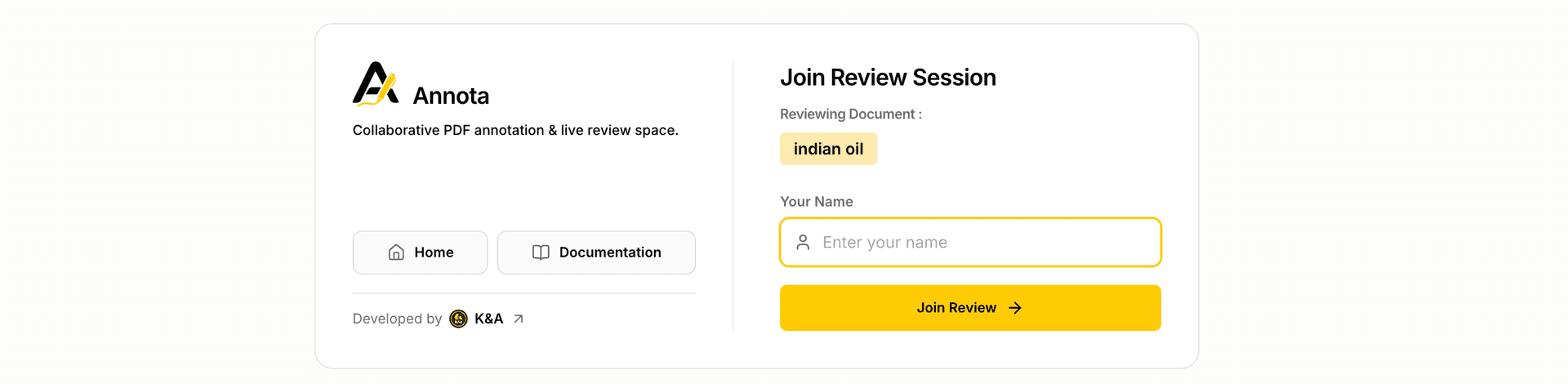
Type your display name in the focused input box. This name will identify your comments and live cursor badge to all other reviewers.
Press Enter to enter the workspace instantly. Annota saves your session locally so you can return anytime.
Navigating the Review Workspace & Live Presence
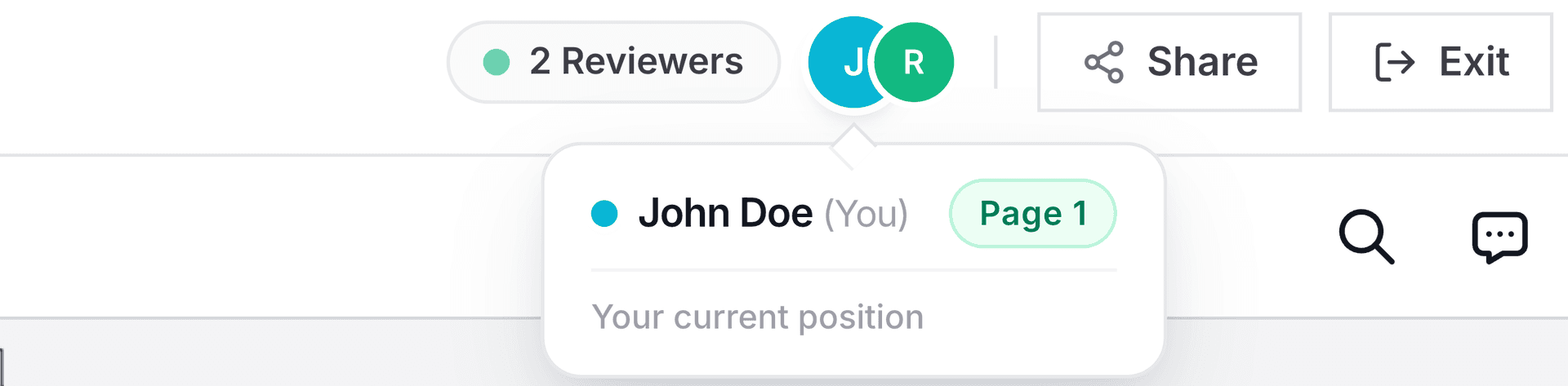
The top header bar displays live reviewer avatars with distinct color badges. Click Share to copy the review link for teammates, and click Exit whenever you want to return to the home lobby.
Annotation & Shape Markup Tools


Click anywhere on a PDF page to drop a numbered pin marker and attach feedback notes.
Select text inside the PDF to apply Highlight, Underline, or Strikethrough formatting.
Draw bounding boxes, arrows, circles, or freehand ink paths over PDF graphics.
Comments Panel & Managing Your Feedback
The Comments Panel is located on the right side of the screen and opens automatically by default. It displays all feedback pins and notes attached to the document.
Each comment card features a vertical three-dot menu icon (⋮) in the top-right corner. Clicking this menu opens options to Edit or Delete your comment.
Clicking any comment card in the sidebar automatically scrolls the main PDF viewer directly to the exact page and pin coordinate where the feedback was placed.
You may edit or delete comments that you created during your session. Do not delete or edit comments created by other reviewers to maintain feedback history and team transparency.
Ready to manage or review PDF documents?